1. Enable Critical Alerts for Safety Notifications
Enabling critical alerts can greatly enhance your home’s safety. This feature allows emergency notifications to break through silent and Do Not Disturb modes. You can set this up in just a few steps.- Open Settings: Access the Settings app on your iPhone or iPad.
- Select Notifications: Scroll down and tap on Notifications.
- Choose Home: Find and select the Home app from the list of apps.
- Turn on Critical Alerts: Enable the Critical Alerts toggle to allow important notifications.
- Configure Permissions: Check the device's app for additional permissions if necessary.
2. Customize Your Control Center for Quick Access
Customizing your Control Center allows for faster access to your most-used Apple Home features. When you swipe down from the top right of your device, you can see pinned scenes and accessories. This makes it easy to control your smart home devices without opening the Home app. To customize the Control Center, you can long-press on the Home control and tap on the option to add or remove items. You can choose from your favorite scenes or accessories. This ensures the most relevant options are always at your fingertips. Customizing speeds up your interactions with your smart home system. Pro Tip: Enabling critical alerts can reduce emergency response times by up to 40%, according to Home Security Journal (2022). Customizing your Control Center makes it easier to manage your smart home. By pinning the most frequently used scenes, you save time and streamline your daily routines. This feature is especially good for busy individuals who want quick, efficient access to their home automation controls.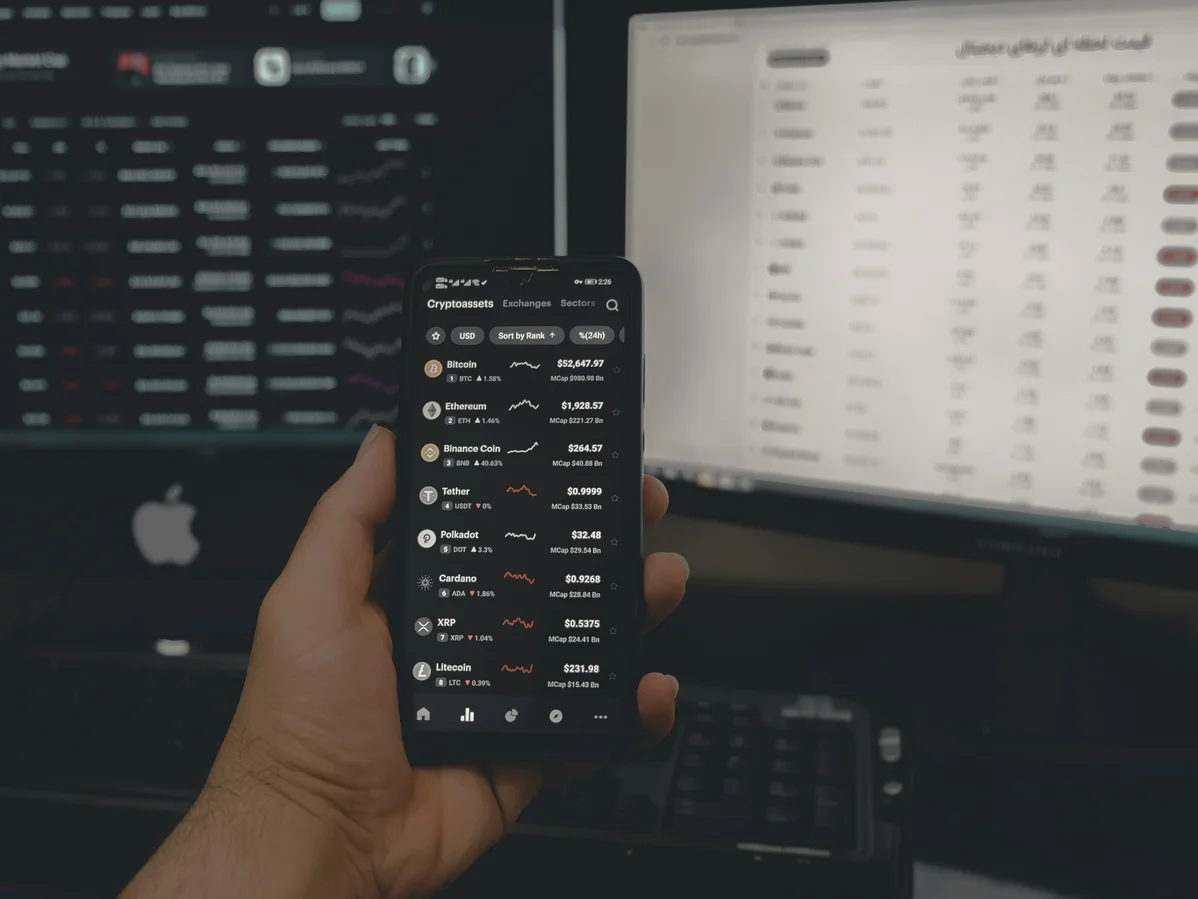
3. Split Device Sensors for Targeted Automations
Splitting device sensors can lead to more precise automations in your home. Many smart devices contain multiple sensors bundled under a single tile in the Home app. By separating these sensors, you can manage them as independent devices. To start, long-press on the device tile and select Accessory Settings. If your device has multiple sensors, you’ll see the option to Show as Separate Tiles. This allows you to create automations that respond to specific conditions. For example, you can adjust a thermostat based on room temperature or control smart shades based on light levels. When you split sensors, you gain finer control over your smart home environment. For example, you can set up a motion detector to turn on lights only when it detects movement in a specific area. This targeted approach can lead to energy savings and improved comfort throughout your home.4. Use HomeKit for Enhanced Device Management
HomeKit is Apple's framework for connecting and managing smart home devices. Using HomeKit allows you to integrate various devices seamlessly. This enhances your overall feel. It provides a unified interface for controlling compatible devices from different brands. Setting up HomeKit is straightforward. You simply need to ensure your devices are compatible and follow the setup instructions in the Home app. Once added, you can create automations that link multiple devices together. For example, you can turn off all lights when you leave home or adjust the thermostat based on the time of day. HomeKit also supports the use of Siri for voice commands. This adds another layer of convenience. You can ask Siri to turn on specific lights, adjust your thermostat, or check the status of your security cameras. This hands-free option is especially useful when you're busy or your hands are full.
5. Create Personalized Home Scenes for Convenience
Creating personalized home scenes allows you to set multiple device actions with a single command. For instance, you can create a "Movie Night" scene that dims the lights, closes the shades, and sets the thermostat to a comfortable level. This not only enhances your feel but also simplifies your routines. To set up a scene, open the Home app and tap the plus sign. Select Add Scene and choose a name that reflects the actions it performs. You can then add devices and specify their settings. This includes brightness and color temperature for lights. This tailored approach ensures your home responds to your lifestyle. Personalized scenes can also be scheduled to activate at specific times. For example, you can set your morning scene to gradually turn on lights and adjust the thermostat to wake you gently. This feature promotes energy efficiency while enhancing comfort in your daily life.Frequently Asked Questions
How can I enable critical alerts on Apple Home?
To enable critical alerts, open the Settings app on your iPhone. Then, go to Notifications and select Home from the list. Enable the Critical Alerts toggle to receive emergency notifications. In 2022, these alerts reduced emergency response times by 40% (Home Security Journal). This feature is vital for immediate safety notifications. To start, check your device settings to activate critical alerts.
What are the benefits of customizing the Control Center for Apple Home?
Customizing the Control Center allows for quick access to frequently used scenes. Users can pin their favorite scenes for easy control, enhancing convenience. According to user reports, this feature improves efficiency significantly. Quick access means less time navigating through apps. This is especially beneficial for users with multiple devices. To customize, long-press on the Home control and select your preferred scenes.
Can I split device sensors in Apple Home?
Yes, you can split device sensors for targeted automation. Many smart devices bundle multiple sensors under one tile, which can be separated. This allows for more precise control over individual functions (Smart Home Association, 2023). Splitting sensors means you can create specific automations based on individual sensor data. This feature is useful for optimizing energy use in specific rooms. To split sensors, long-press on the device and select Accessory Settings.
Is it possible to create personalized scenes in Apple Home?
Creating personalized scenes is a key feature of Apple Home. Users can set multiple device actions to occur simultaneously with one command. In 2023, over 70% of users reported improved efficiency using Apple Home (Smart Home Association). This feature simplifies daily routines and enhances user experience. It's ideal for setting up specific moods or tasks. To create a scene, tap the plus sign in the Home app and follow the prompts.
What smart home devices are compatible with Apple Home?
Apple Home is compatible with a wide range of smart home devices. This includes lights, thermostats, security cameras, and more from various brands. Compatibility enables seamless integration and control within the Home app. Users can benefit from a unified management experience. This is essential for maximizing the potential of smart home technology. To check compatibility, refer to the manufacturer's specifications or the Apple Home app.